 VozIA
Run your workshop with VozIA
Set up bays and services, receive each vehicle with its intake form, move the job through stages, quote by job, collect what was approved and deliver.
Each vehicle you receive has a work order with its intake form, its quote and its delivery. Your team moves it through stages in Workshop, and VozIA uses that order to answer the customer, notify them of each change and collect only what they approved. VozIA does not diagnose: it answers with what your team recorded.
1. Turn on the workshop
Open Business → Workshop. This section appears when the business was set up as an Auto repair shop: the person who creates the business or the VozIA team chooses it when they set it up with you.
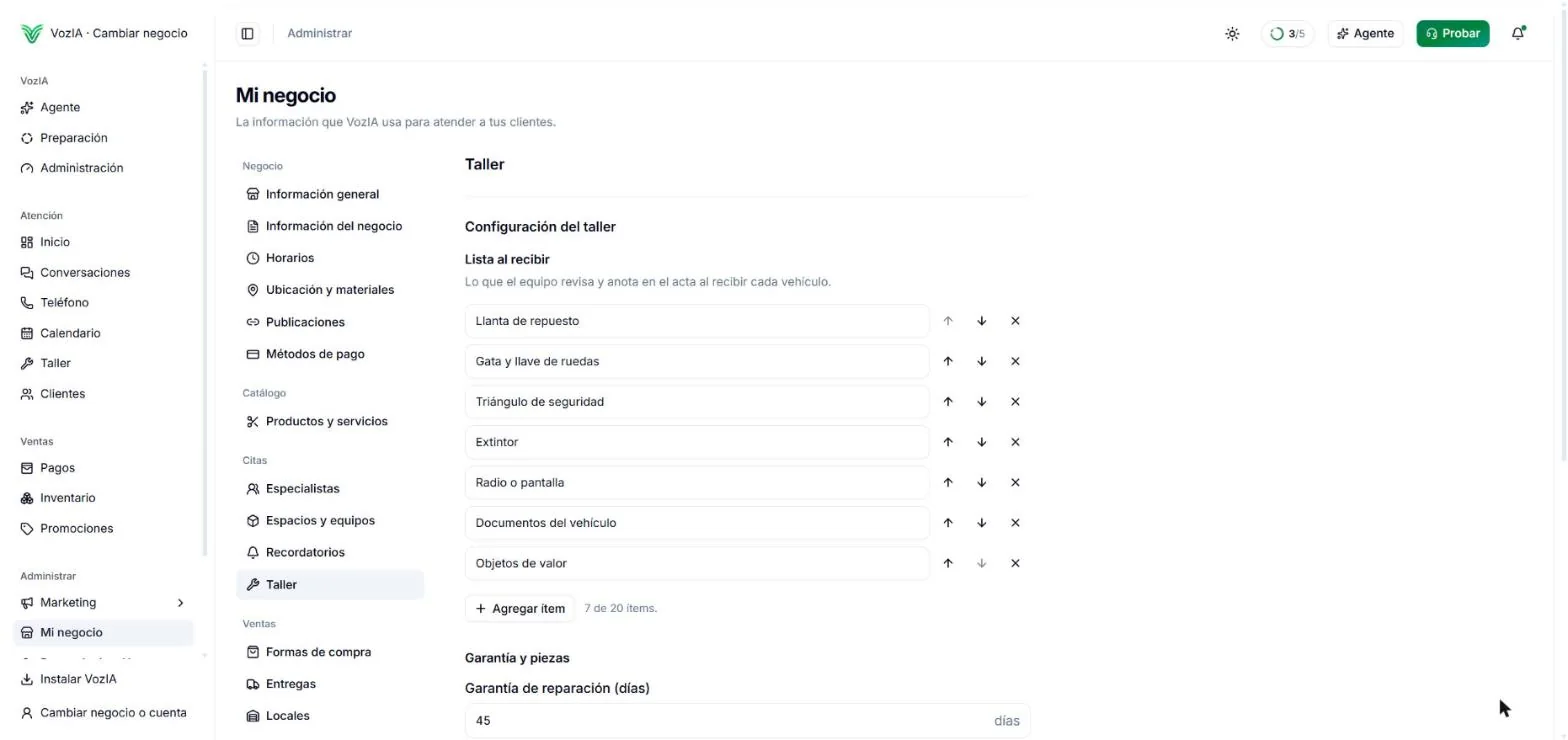
Review the Workshop settings:
- Checklist on intake: what your team checks and notes on each vehicle's intake form, such as the spare tire, jack and wheel wrench, or vehicle documents. You can have up to 20 items and change their order.
- Repair warranty (days): the number of days reported at delivery. Peru's Consumer Protection and Defense Code gives 30 days to repair again at no cost if the fault is the workshop's.
- Offer to return replaced parts: shows the checkbox to record it at delivery.
- Assumed daily mileage: used only until a vehicle has two mileage readings.
- Look up vehicle data by plate: see step 9.
Click Save changes.
2. Register bays and equipment
Open Business → Spaces and equipment and click Add space or equipment for each resource: bays, lifts, alignment machine. Enter how many units you have and when they can be booked.
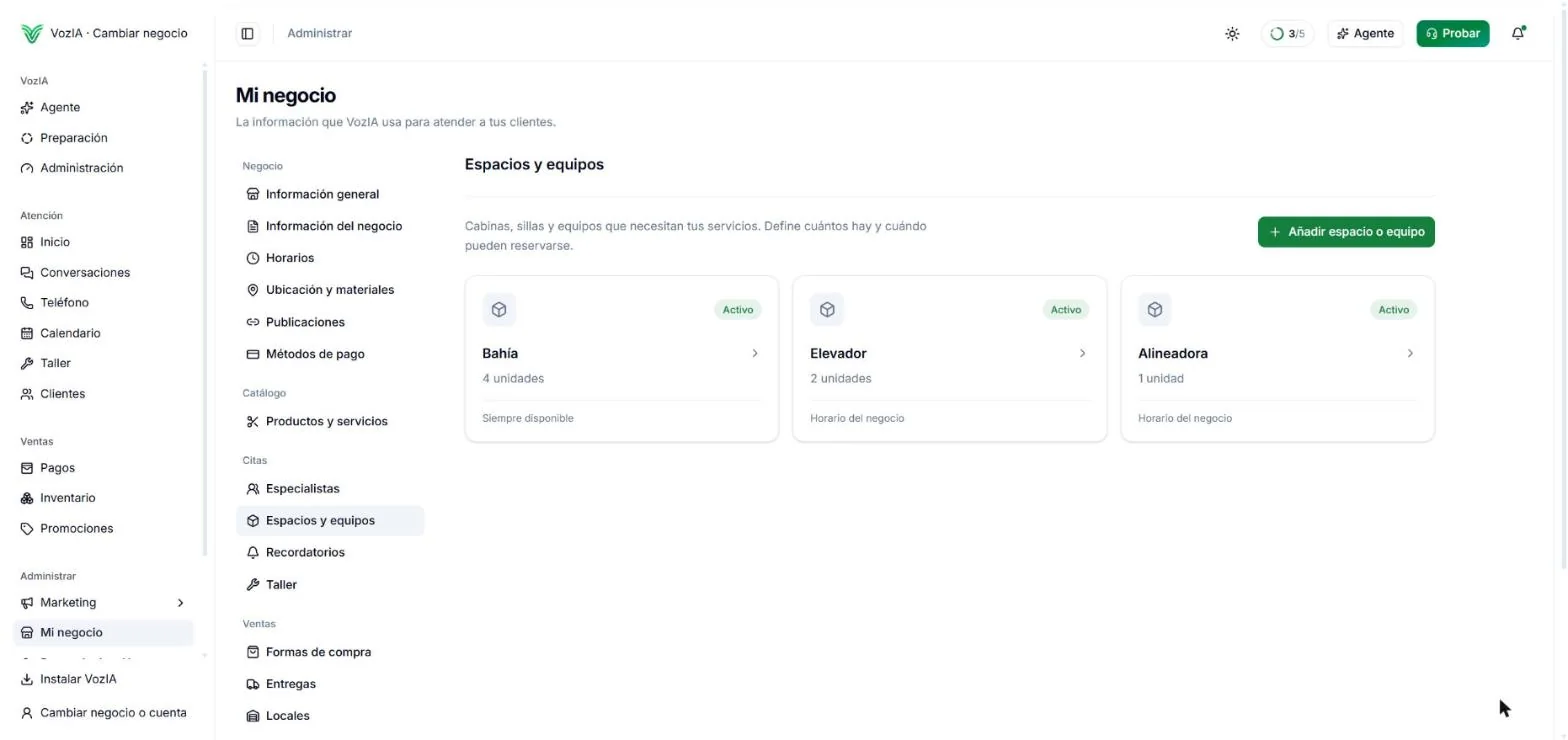
A bay is usually Always available, because a car can stay overnight. A lift or the alignment machine usually follows the Business hours. VozIA books only when the space and the equipment that the service requires are free.
3. Set up services
Open Business → Products and services → Services and open a service. Under Phases and resources, answer Does the customer wait or leave the vehicle?:
- Waits: the work is done while the customer waits.
- Leaves the vehicle: the advisor receives the car with the customer, and then the vehicle stays in the bay. The phase The vehicle stays occupies the bay, not the advisor, and it can run past closing time.
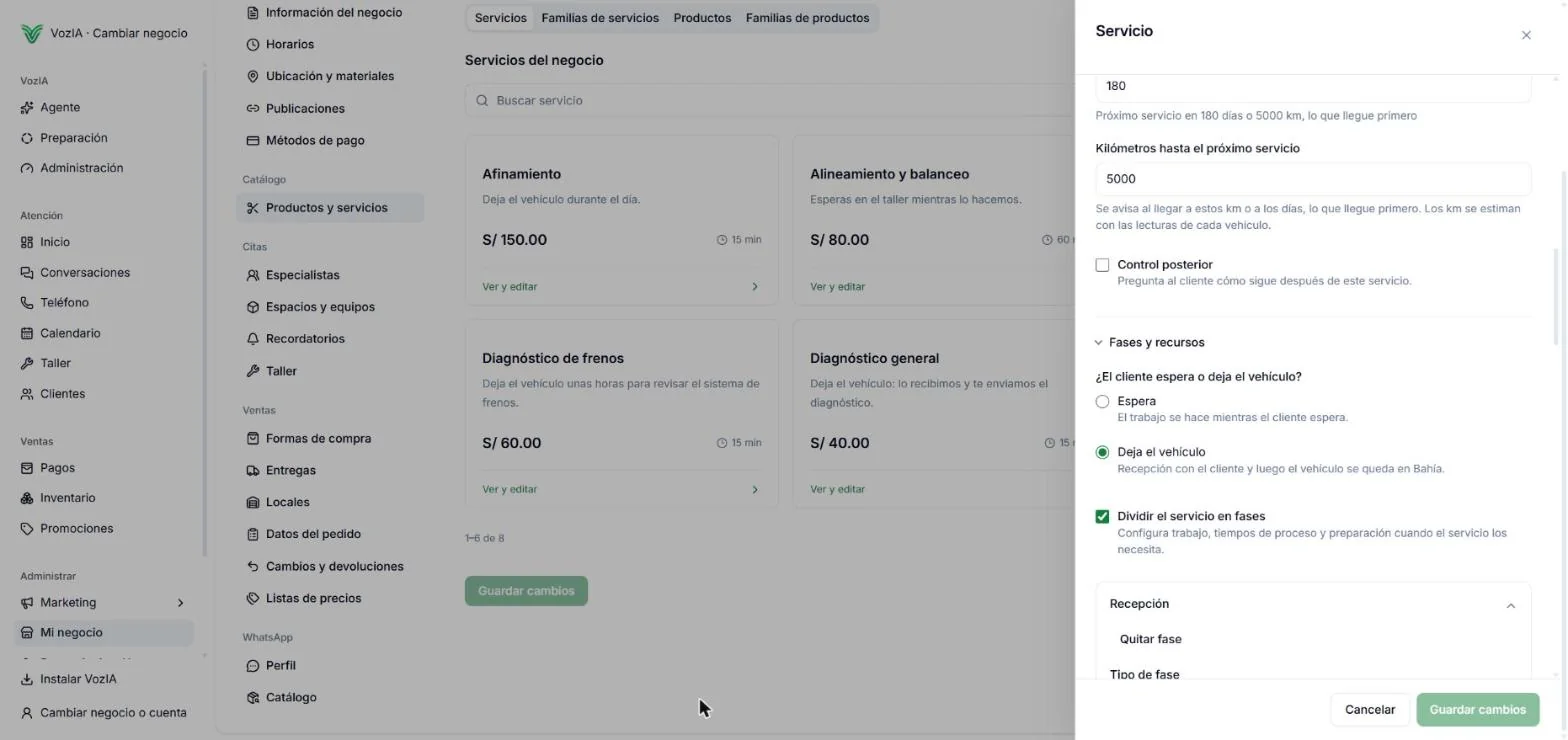
Under After the visit, you can set the Replacement frequency (days) and the Kilometers until next service. VozIA reminds the customer by days or by kilometers, whichever comes first (step 8).
4. Receive the vehicle with its intake form
On Workshop, click Receive vehicle and enter the plate. Choose the appointment the vehicle came for, or No appointment. Without an appointment, choose the reception service and write the Reason in the customer's own words. If the plate is new, you register the vehicle and its customer right there.
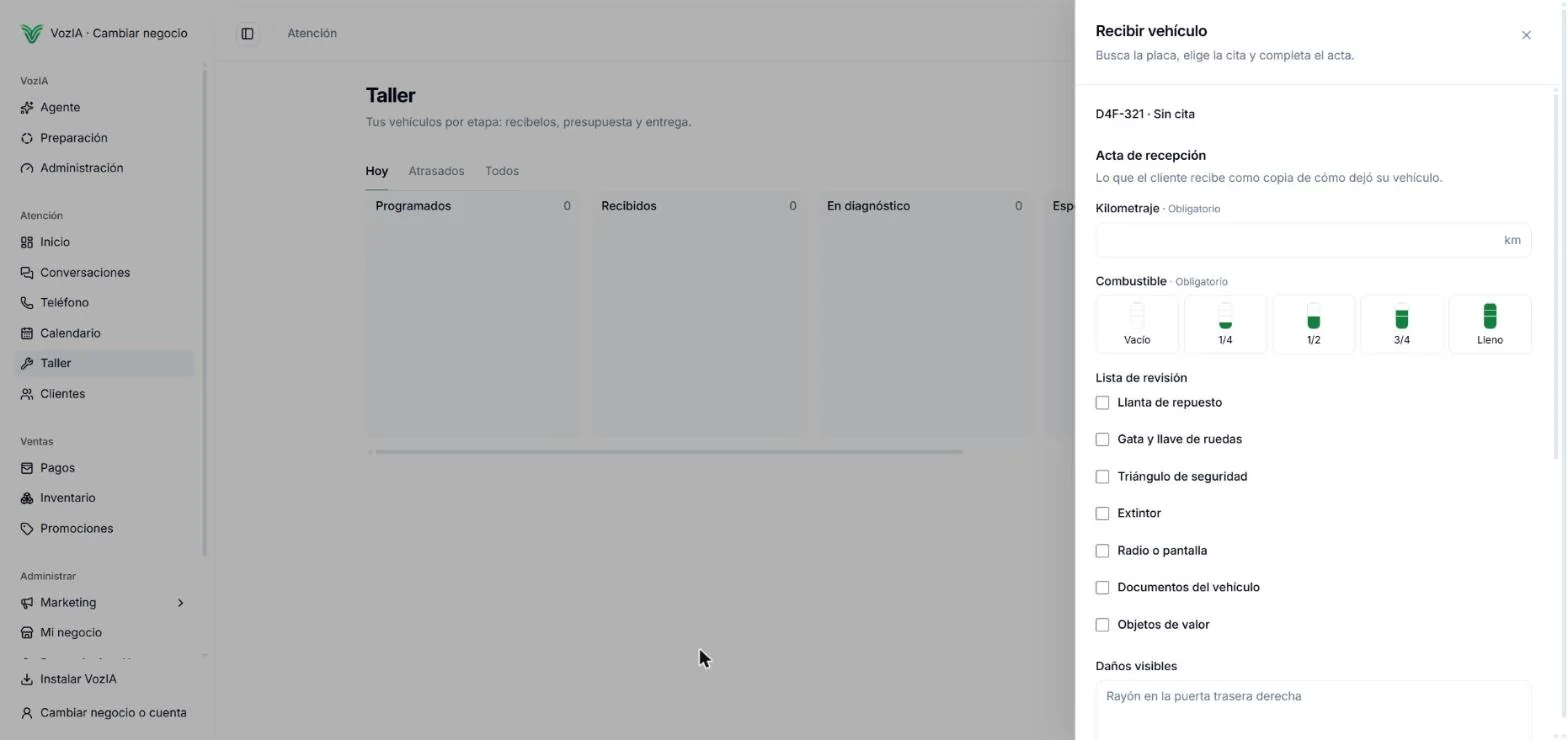
Complete the Intake form:
- Mileage and Fuel, in five levels;
- the Inspection checklist you prepared in step 1;
- Visible damage and Items inside the vehicle;
- Photos and videos: on a phone, Add photo or video opens the camera;
- Expirations (optional) and Estimated delivery, which is proposed based on the service duration and which you can change.
Click Receive. With WhatsApp connected, the customer receives "📋 We received your …" with its mileage, the estimated delivery and the View intake form button. On the page for their order, they see the intake form with the photos and, if anything does not match, they can add a note that reaches your team.
5. Move the job across the board
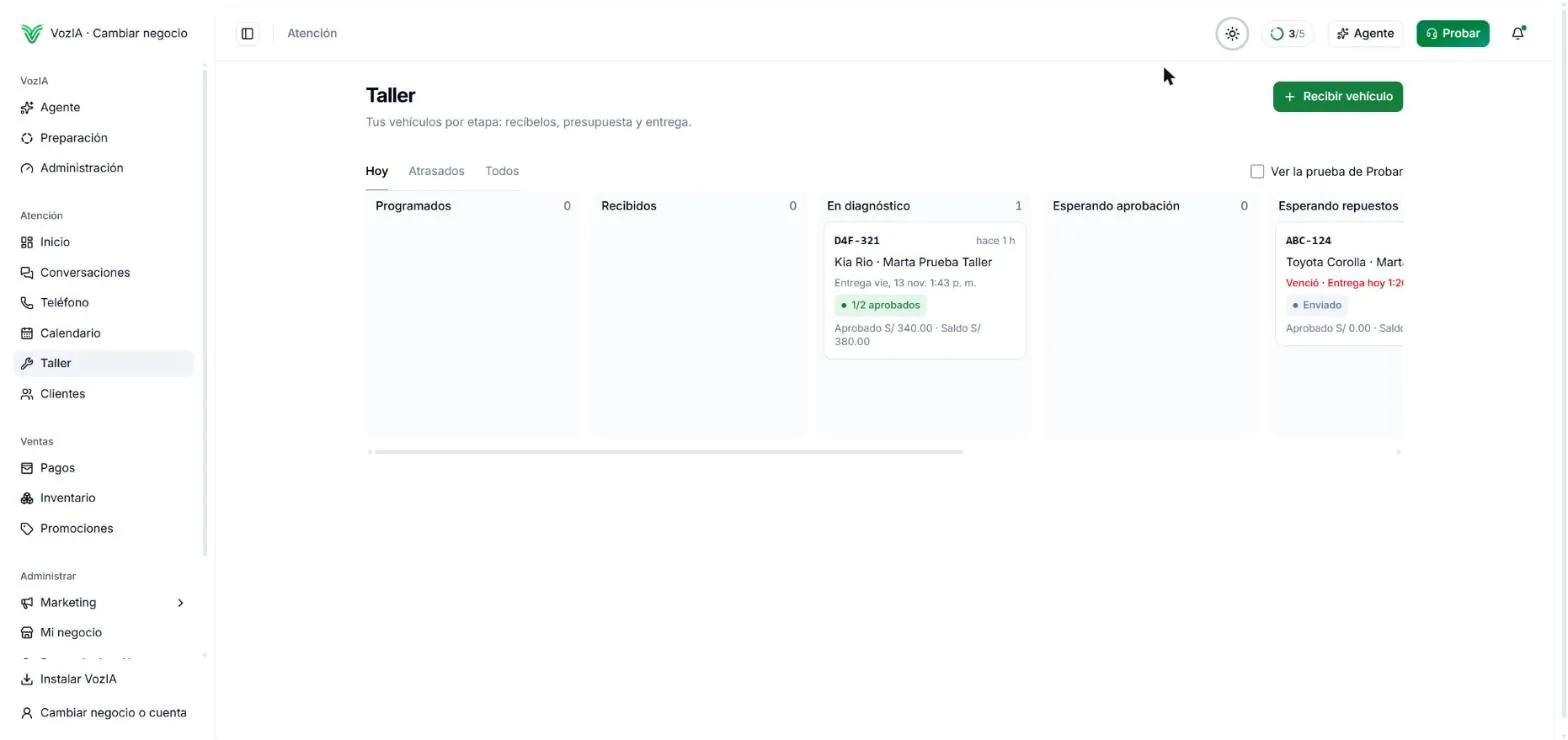
Workshop shows each order in its stage: Scheduled, Received, In diagnosis, Awaiting approval, Awaiting parts, In repair, Ready and Delivered today. Filter with Today, Overdue and All. Each card shows the plate, the vehicle, the customer, the estimated delivery, the quote status, and what is approved and the balance.
Open a card to see its order. Under Status, change the stage with one tap; below each button you see the notice the customer will receive. Awaiting parts asks you for the estimated date.
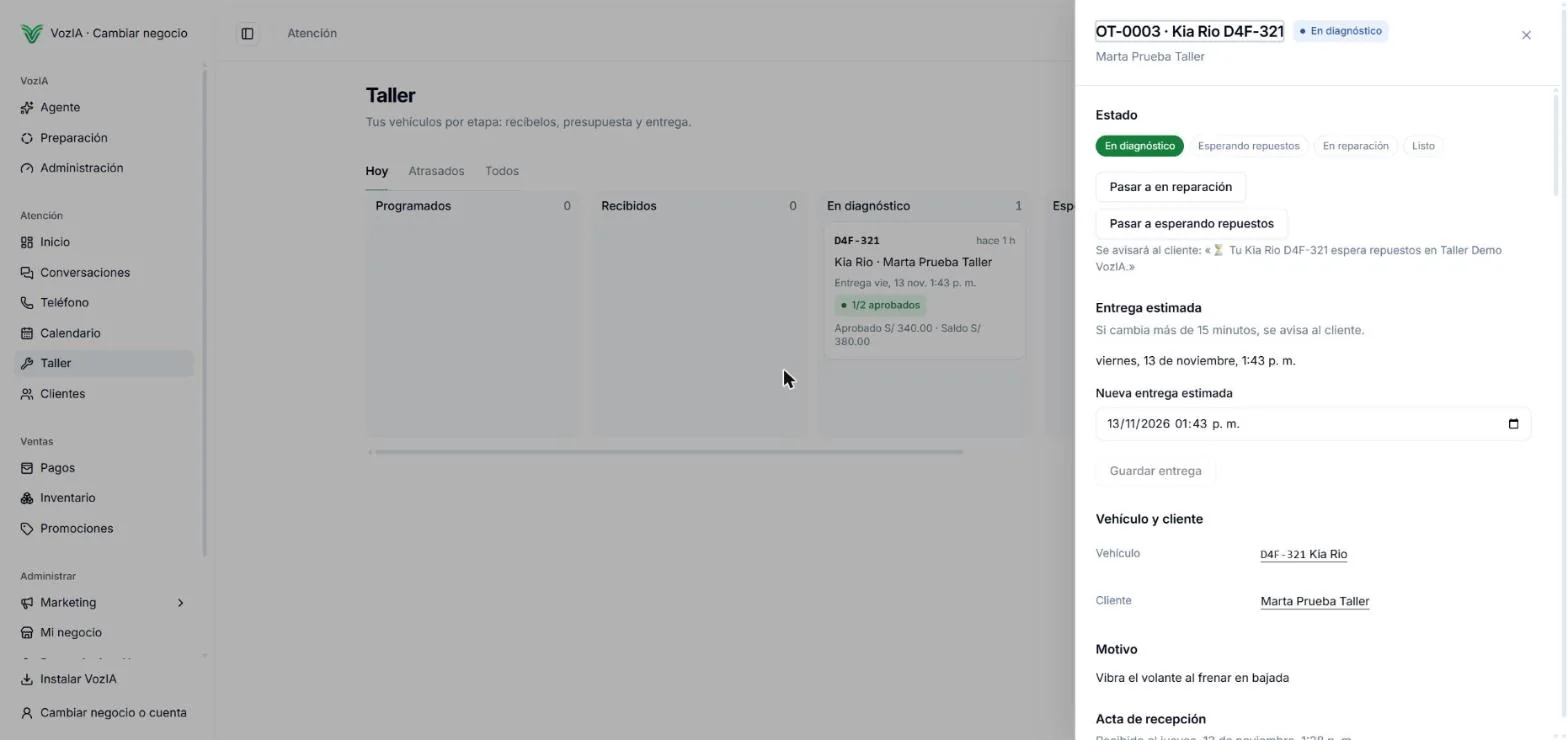
Under Estimated delivery, enter the new date and click Save delivery: if it changes by more than 15 minutes, the customer is notified. If that time arrives and no one has changed the stage or the date, your team receives an alert and the card appears under Overdue with "Overdue" in red.
When the customer asks "is my car ready yet?", VozIA reads the order and answers with the stage and the time it changed.
6. Quote by job
Under Inspection and quote, add a job for each thing the customer needs to decide:
- a Title and its urgency: Urgent, Soon, Can wait or Inspected, no issues;
- the Explanation for the customer: Improve wording tidies the mechanic's text without changing any figures, and you choose Use or Discard;
- its line items, with quantity and price; if you use Inventory, you can search for the part and see its stock;
- up to 10 photos or videos.
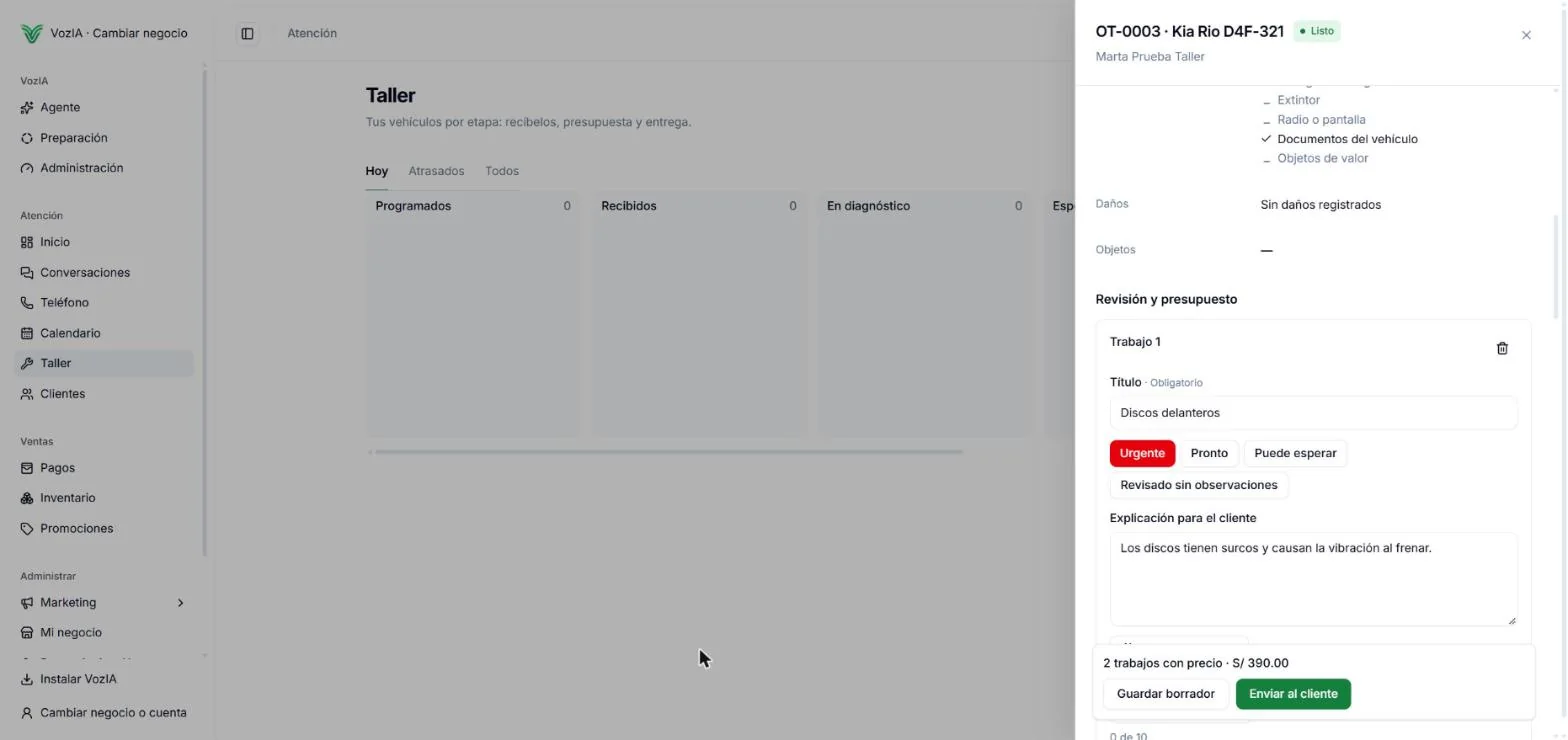
The draft saves automatically. Click Send to customer: the customer receives "🔧 The quote for your … is ready" with the View quote button.
The customer decides on each job separately:
- on the page for their order, with Approve and a confirmation, or with Not for now;
- in the chat, in their own words: VozIA records each decision;
- in person: your team clicks Record customer decision.
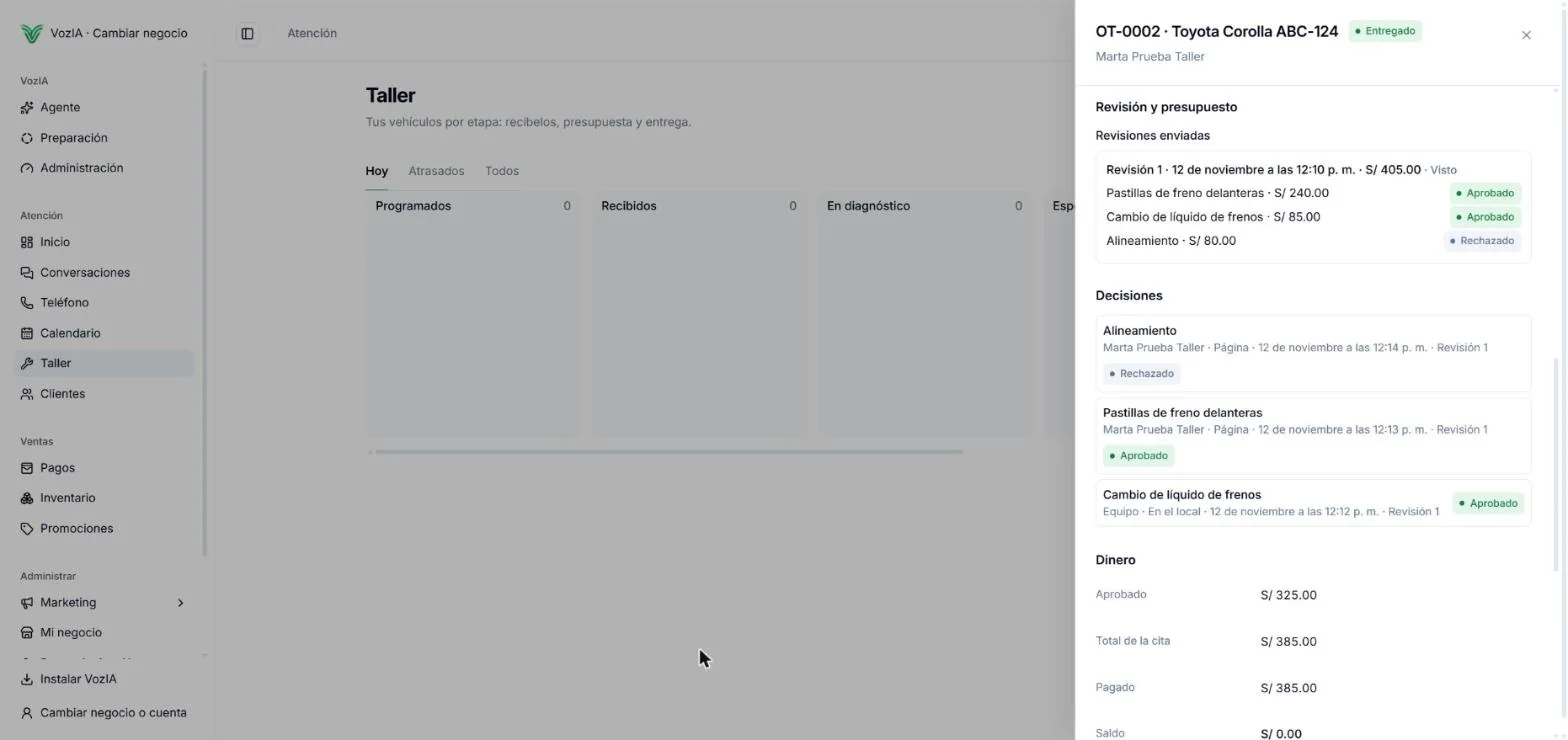
Decisions shows who decided, through which channel, at what time and on which revision. Only what was approved is added to the total; a job with no response is not charged. If you change a job and send it again, it is marked Awaiting decision, and only that job is decided again.
7. Collect and deliver
When you move the order to Ready, the customer receives "✅ Your … is ready" with its balance and the View and pay button. VozIA requests the balance with the first payment method that can collect remotely. Money shows what was approved, the total, what has been paid and the balance. Collect opens the payments for that appointment so you can record a partial payment by Yape, Plin or cash.
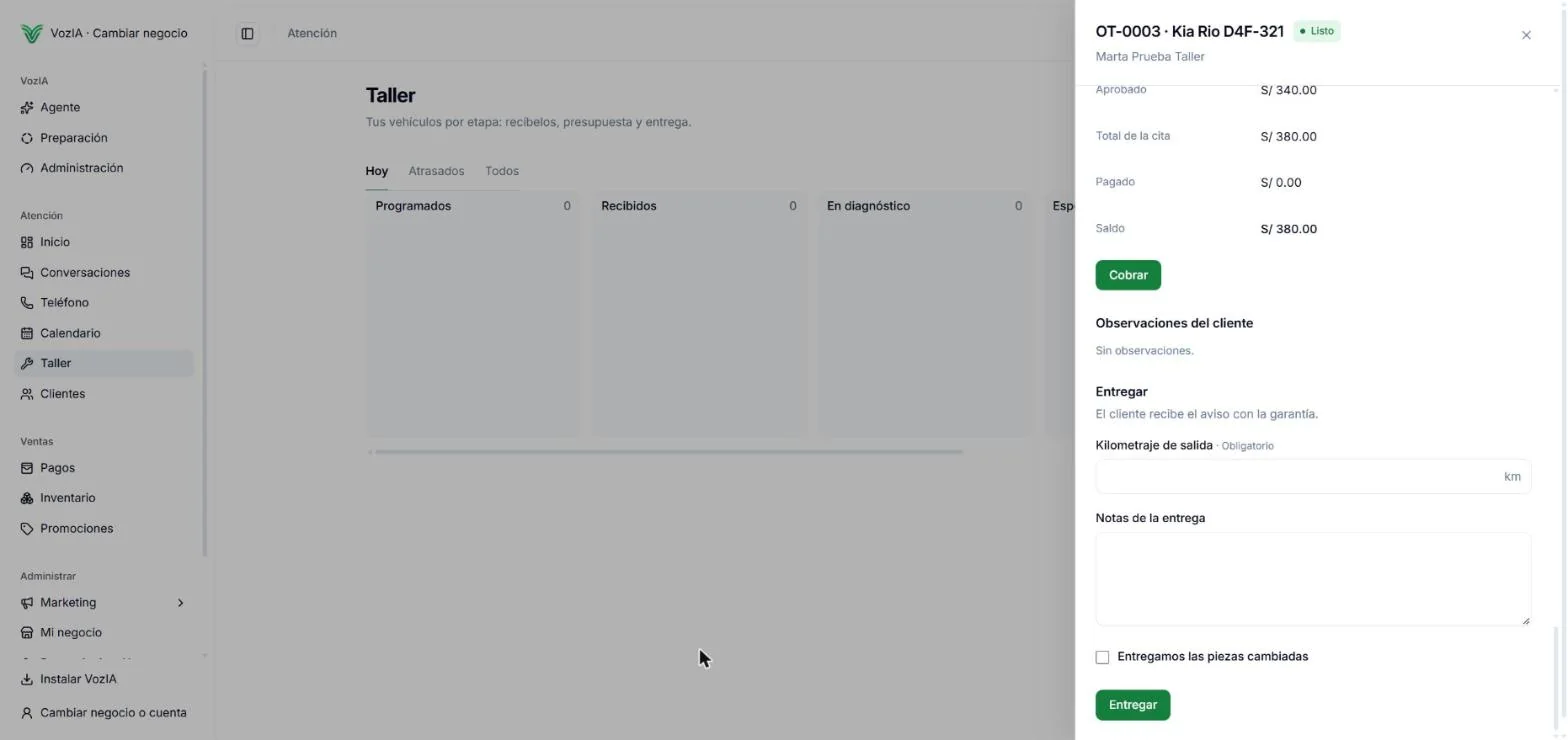
Under Deliver, enter the Mileage out and the Delivery notes, check We returned the replaced parts if applicable, and click Deliver. If the customer takes the vehicle before the work is finished, use Deliver unfinished with the reason.
The customer receives the summary with the date, the mileage and the warranty days. Urgent or soon jobs that they did not approve remain as Pending jobs on the vehicle.
8. Follow-up messages from the workshop
Open Marketing → Loyalty. A workshop has three moments of its own:
- Service replacement: writes when the vehicle is approaching its next service, by days or by kilometers. VozIA estimates each vehicle's kilometers from its own readings.
- Vehicle expirations: sends a notice 30 days before the technical inspection, the SOAT or the gas certification, when you know the date. You can change the number of days.
- Pending jobs: 30 days after delivery, reminds the customer of what they left for later, if it is still pending.
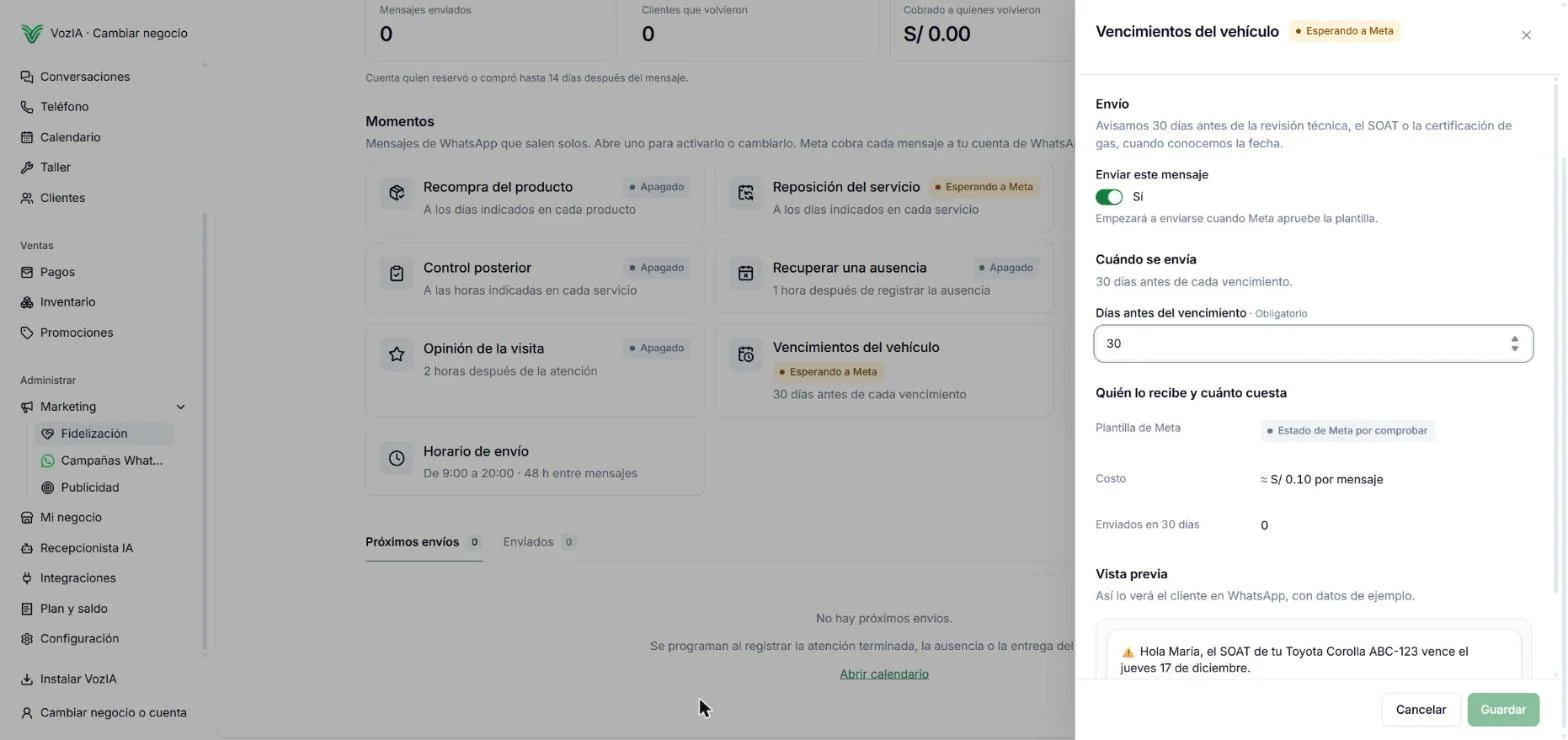
Each moment shows when it is sent, its approximate cost per Meta message and a preview. Sending starts when Meta approves the template in your WhatsApp account. VozIA does not calculate expiration dates from the plate: it uses only real dates.
9. Look up by plate
With Look up vehicle data by plate turned on (step 1), when you register a vehicle VozIA fills in the make, model, color, VIN, engine and the end of the SOAT. That data is marked Looked up by plate · To confirm until your team clicks Confirm. A lookup is made at most once per plate every 180 days.
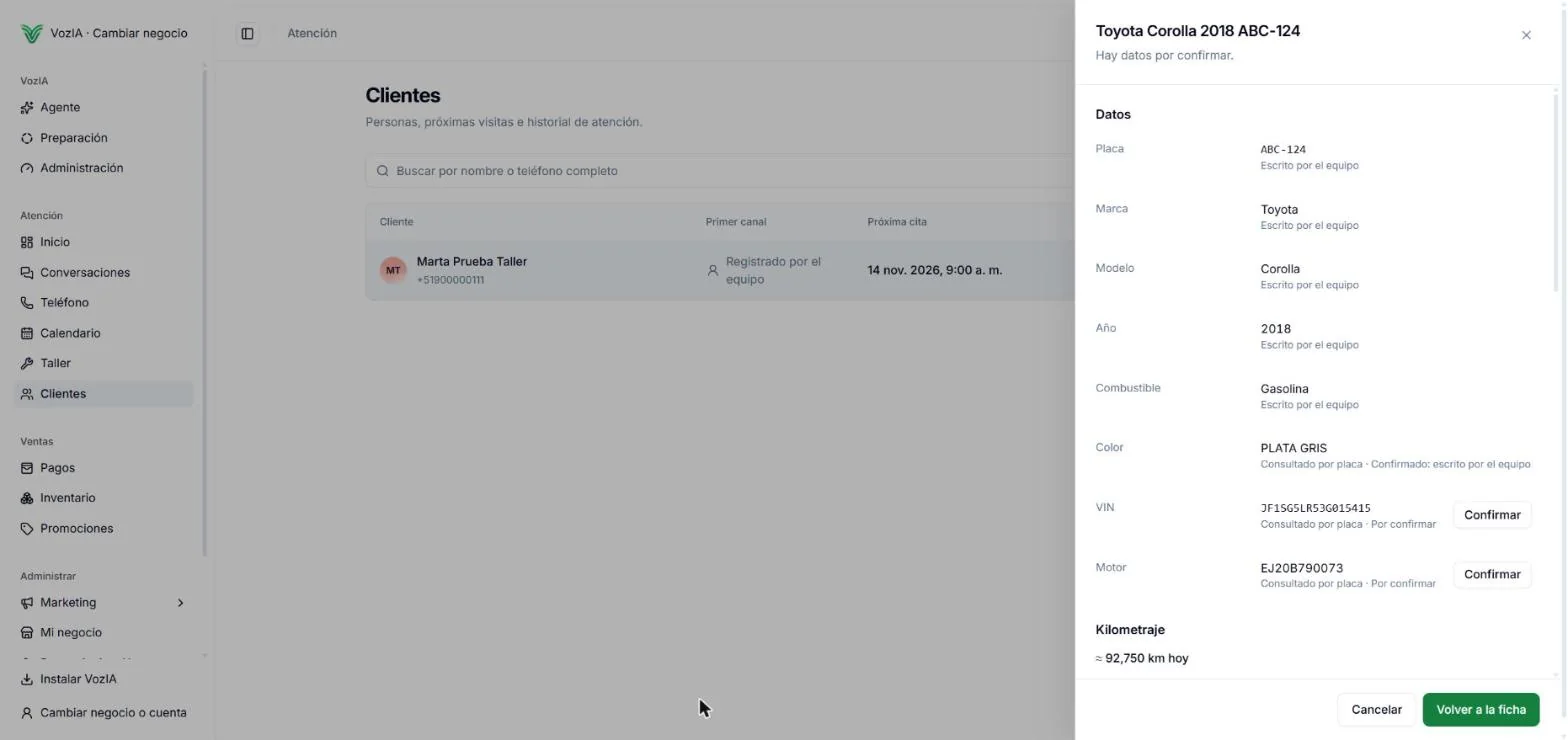
The vehicle record, under Customers, brings together its details, the mileage with each reading, the Expirations, the Pending jobs and its orders. View order opens the order in Workshop.
Ten en cuenta
- Workshop appears in businesses set up as auto repair shops.
- Customer notices are sent by WhatsApp when the business has WhatsApp connected and Meta has approved the templates.
- Actions depend on your account permissions.